
Annotation Queues
Thumbs up and model judges tell you a lot, but some answers need a person to read them: the chat a customer complained about, a sample of this week's traffic, every answer about a legal topic. An annotation queue is a to-do list of such answers for your team.
What Is an Annotation Queue?
An annotation is a label a person gives an answer after reading it: helpful or not, an accuracy from 1 to 5, the kind of mistake it made. A queue collects the traces (the AI calls made for one user action) you want labelled, and the dashboard's Review screen hands them to your reviewers one at a time. A reviewer reads what the model was asked and what it answered, gives the queue's labels, adds a comment if needed, and moves on to the next trace.
The labels are saved as scores with the Annotation source, so they show next to user feedback and model judgements everywhere scores do: on the trace, on the Overview, and on the Prompts screen when you compare prompt versions.
You decide what goes in a queue: a random share of traffic, the traces users gave a thumbs down, or any trace you pick on the dashboard.
Defining a Queue
Add queues to config/spectra.php under annotations.queues. Each queue names the scores its reviewers give:
'annotations' => [
    'queues' => [
        'support-review' => [
            'description' => 'Check the support agent\'s answers',
            'scores' => [
                'helpful' => 'boolean',
                'accuracy' => ['type' => 'numeric', 'min' => 1, 'max' => 5],
                'issue' => ['type' => 'categorical', 'options' => ['wrong-facts', 'tone', 'incomplete', 'none']],
            ],
            'sample' => 0.05,
            'filter' => ['prompt_name' => 'support-answer'],
        ],
    ],
],
This queue takes one in twenty of the traces whose calls used the support-answer prompt, and asks its reviewers three things: was the answer helpful, how accurate was it from 1 to 5, and what, if anything, was wrong with it.
| Score type | The reviewer picks | Saved as |
|---|---|---|
boolean | Yes or No | A yes/no score |
numeric | A number from min to max; one button per value for a range of up to 10 whole numbers | A numeric score |
categorical | One of the options | A category score |
A queue name is up to 100 characters. A typo in a queue (no scores, an unknown type, a categorical score without options, an unknown filter) throws an InvalidArgumentException the first time the queue is read.
Filling a Queue
There are three ways to put a trace in a queue. A trace is in a queue once: adding it again keeps its place and status.
Sampling. With sample, the queue takes that share of the traces whose calls match filter, as they are recorded: 0.05 is one trace in twenty. The choice is made per trace, so every call of a sampled trace leads to the same queue item. The filter keys are:
| Key | Matches calls |
|---|---|
provider | of this provider, or one of a list |
model | of this model id |
prompt_name, prompt_version | tagged with this prompt or version |
tag | with this tag, or any of a list |
origin | from this route, job or command, as stored in origin |
failed | that failed (true) or succeeded (false) |
From code. Queue the current trace, or any trace by id, with Spectra::queueForReview(). For example, when a user gives a thumbs down:
use Spectra\Facades\Spectra;

Spectra::score('helpful', false, traceId: $traceId, source: ScoreSource::User);
Spectra::queueForReview('support-review', $traceId);
It returns whether the trace is in the queue, and throws an InvalidArgumentException for a queue that isn't configured.
From the dashboard. A trace's page has an Add to review menu with every queue.
Reviewing
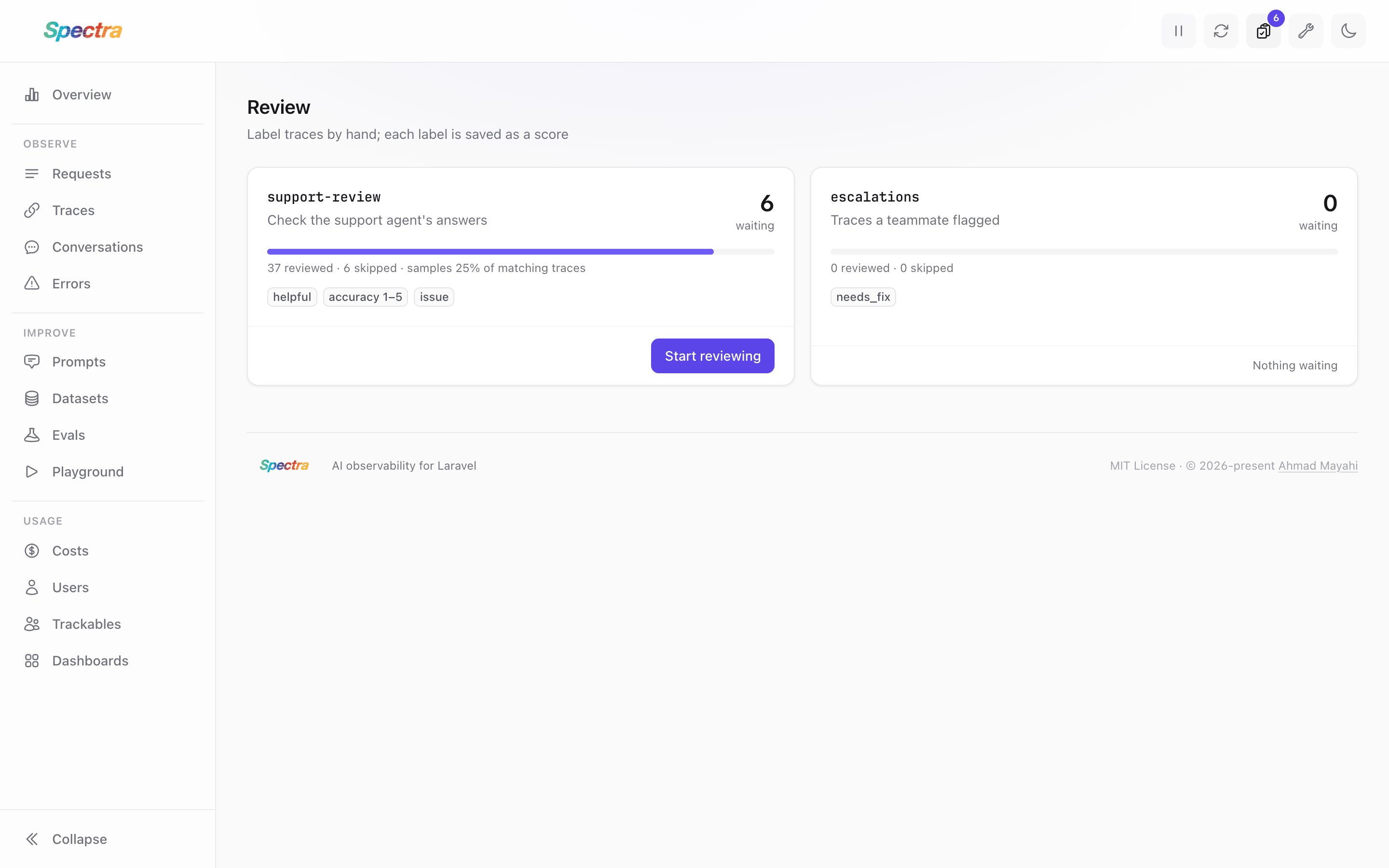
The dashboard's Review screen (the clipboard icon in the top bar, with the number of traces waiting) lists the queues with how many traces wait, were reviewed and were skipped:
Open a queue to review its traces, the one waiting longest first:
- On the left, each call of the trace with what it was asked and what it answered, or its error. The call that got the trace queued is outlined. The trace's scores so far are below.
- On the right, the queue's scores and a comment. Submit and next (or ⌘/Ctrl + Enter) saves the review and opens the next trace; Skip passes over it.
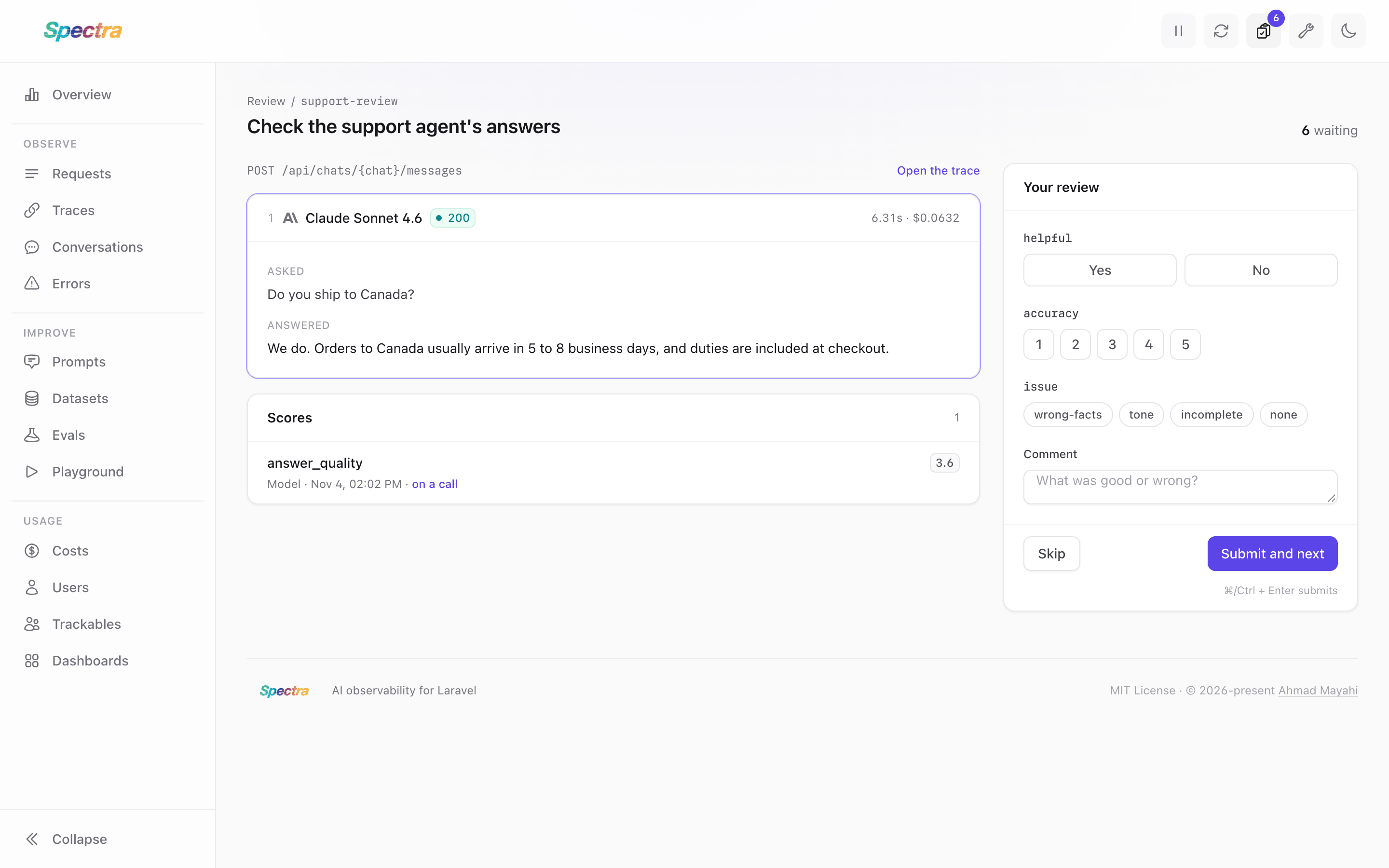
A review needs at least one score or a comment. Each score is saved on the trace with the Annotation source, the signed-in reviewer as its author, and the queue's name in its metadata (annotation_queue). The queue item keeps the reviewer, the time and the comment.
The prompt and reply come from the stored request and response, so a call stored without them (with store_prompts or store_responses off, or skipped by payload sampling) shows its model and status only.
Who Can Review
Reviewing and adding traces from the dashboard need the annotateSpectra gate, and so do creating and changing datasets. Unless you define it, it allows whoever the viewSpectra gate allows. To let only some viewers review, define it in a service provider:
use Illuminate\Support\Facades\Gate;

Gate::define('annotateSpectra', fn ($user) => $user->hasRole('reviewer'));
Users the gate refuses still see the queues and their progress.
Storage
Queue items are stored in the spectra_annotation_items table, added by the annotation migration. Until it runs, nothing is queued and a warning is logged once per process; tracking is not affected. spectra:prune deletes items older than the retention, with their requests.
Testing
Spectra::fake() remembers queued traces instead of saving them. The queue must still be configured:
$fake = Spectra::fake();

// ...

$fake->assertQueuedForReview('support-review');
$fake->assertQueuedForReview('support-review', $traceId);