
Playground
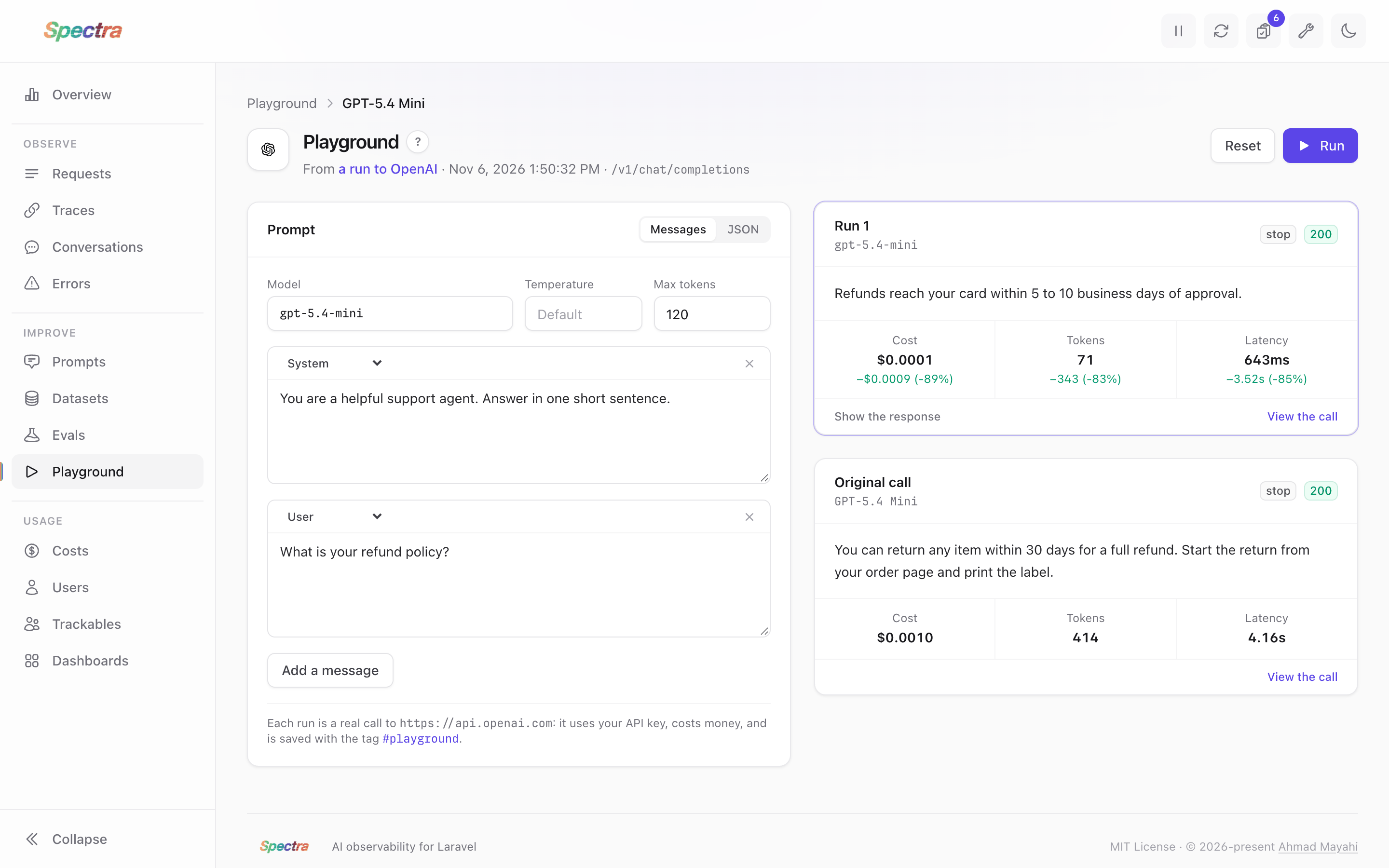
A customer got a bad answer, and you want to know whether a better prompt would have fixed it. Normally that means editing code, deploying or running the app, and sending the same question again. The Playground lets you do it from the dashboard: open the call that went wrong, change the prompt or the model, press Run, and read the new answer next to the old one.
What Is the Playground?
The Playground is a screen for trying prompts and models without touching your code. You can write a new request, or start from a call Spectra has already recorded, so you test with the exact messages your app sent rather than a made-up example.
Each time you press Run, Spectra sends your edited version to the same provider and shows the result. We call that a run. For example, you might:
- Add "Answer in one short sentence" to the system prompt, and see whether replies get shorter and cheaper.
- Try a cheaper model, and see whether the answer is still good enough.
- Open a call that failed, change what caused the failure, and check that it now works.
- Write a new request for a feature you haven't built yet, and try it on a few models.
A run is a real call, not a simulation. It uses your API key, costs money, and sends the prompt to the provider. That's why the Playground is off until you turn it on.
Your code doesn't change. When you find a prompt you like, you copy it into your app yourself. To check a change across many examples rather than one, use an evaluation.
Turning It On
Add this to your .env:
SPECTRA_PLAYGROUND_ENABLED=trueUntil you do, the Playground screen explains how to turn it on, and no call can be opened or run:

The other setting is how long a run may wait for the provider, in seconds. The default is 120:
SPECTRA_PLAYGROUND_TIMEOUT=120Who Can Use It
Using the Playground needs the manageSpectra gate, the same one as the Maintenance screen. It allows only the local environment until you define it, so being allowed to view the dashboard in production doesn't let anyone spend money from it. Define it for the people who may:
use Illuminate\Support\Facades\Gate;

Gate::define('manageSpectra', function ($user) {
    return $user->is_admin;
});
Someone without the gate sees that they can't use the Playground, and the Open in Playground button doesn't appear on their request pages.
API Keys and Base URLs
The Playground uses the keys your app is already configured with. For each provider, it looks in spectra.api_keys, then the usual places such as services.openai.api_key (see API Keys for the full list). If it can't find a key, the call still opens, and the screen tells you what to set.
A run goes to the provider's default address, or to the base URL you set in spectra.endpoint_urls or the usual config keys. The note under the editor shows the address, so you can see where a run will go before you press Run. Only the scheme and host of a configured URL are used; the path comes from the stored call.
Starting From a New Request
Click Playground in the sidebar, then New request. Pick a provider and a model, write your messages, and press Run:
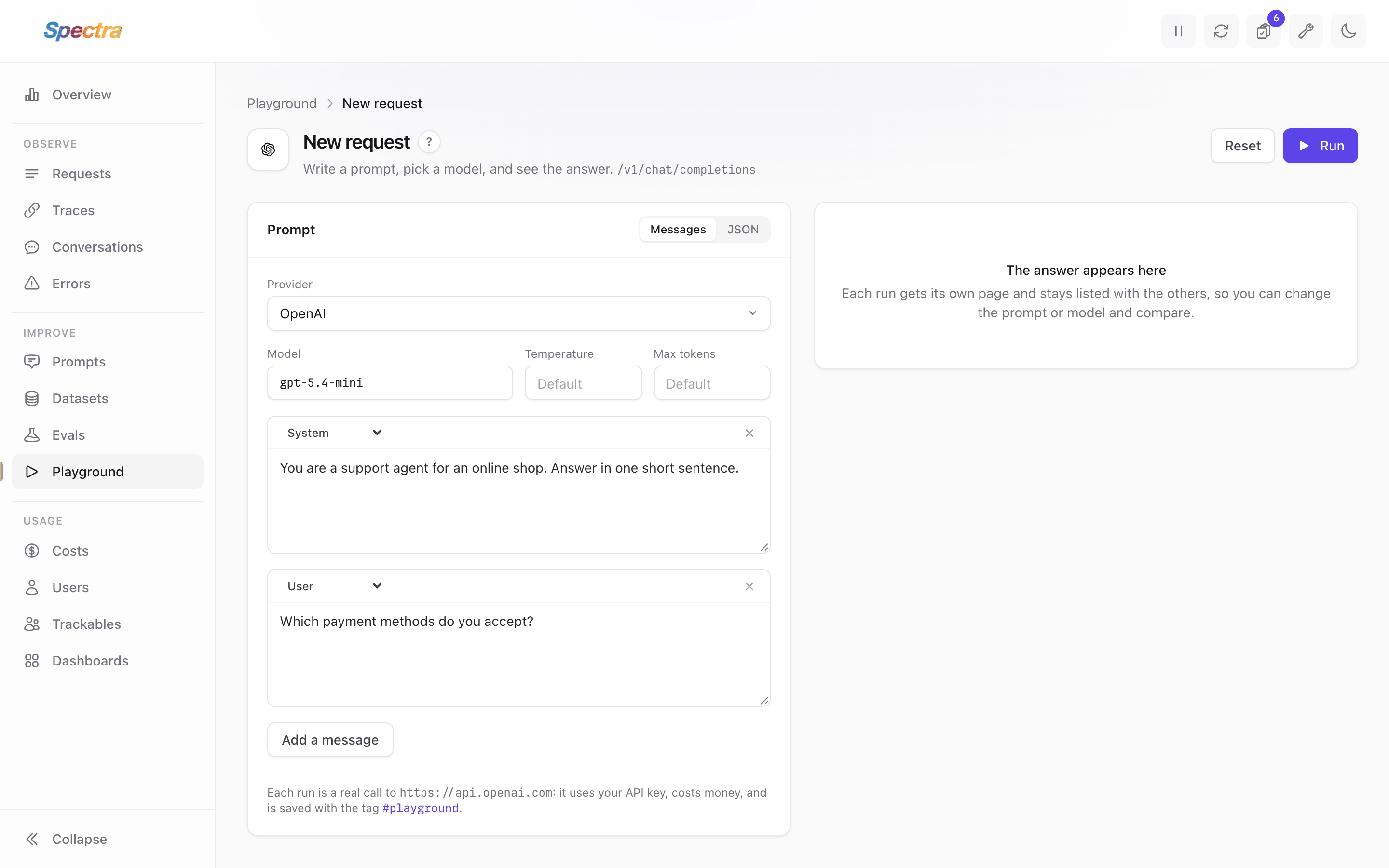
The screen opens on the provider and model used last. A provider without an API key is listed but can't be picked.
The system message is optional: if you leave it empty, it isn't sent. If you change the provider, your messages and settings come with you, converted to that provider's format. Anything you added only in the JSON tab, such as tools, stays behind, because each provider writes those differently.
There's no original to compare with, so each answer shows its own numbers. Your runs stay on the screen, so you can change the provider or model and read the answers one above the other.
Each run opens at its own address, with the other runs of the same new request below it. New request always starts again with an empty list.
Opening a Call
To try again from a call your app made, find it in the requests list and press Open in Playground at the top of its page:

The Playground Screen
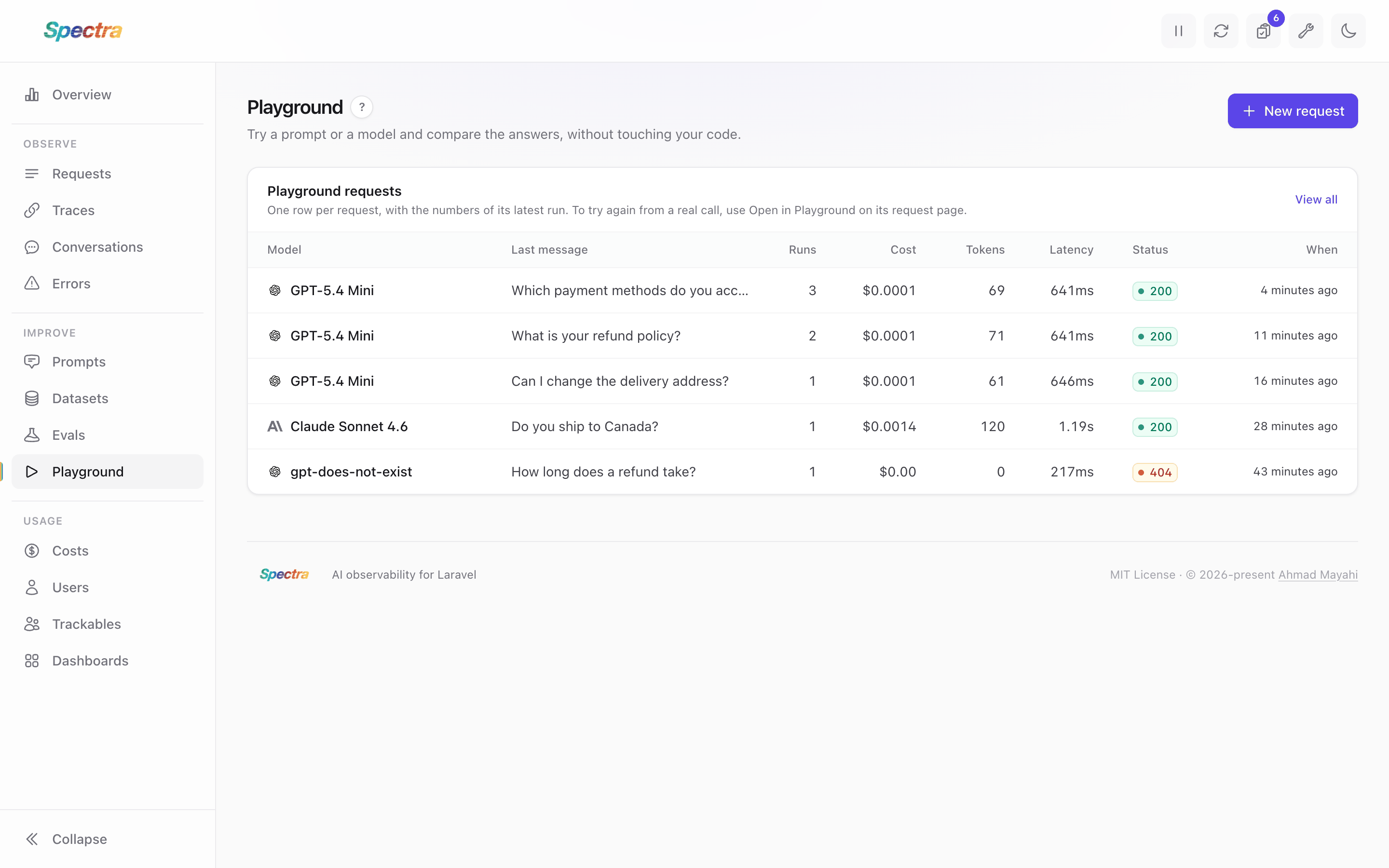
Click Playground in the sidebar to see what you've sent from the Playground, newest first. Each row is one request with all its runs: a call you opened, or a new request you wrote. It shows how many runs there are and the numbers of the latest one. Your app's own calls aren't listed here.
Click a row to open that request with its runs, or View all to see every run in the requests list:
Editing the Call
The editor has two tabs. Your changes carry over when you switch between them, and Reset puts the original call back.
The Messages Tab
The Messages tab shows the call as a list of messages, whichever provider it went to. You can:
- Change the text of any message.
- Change a message's role, such as user or assistant.
- Add or remove messages, for example to give the model an example to follow, or to remove the system prompt and see what it was doing.
- Change the model. The field suggests the provider's current text models from the pricing catalog, and you can type any other name. A run of a stored call always stays with the same provider. To compare providers, use a new request.
- Set the temperature and max tokens. Leave one empty to use the provider's default.
Some messages hold more than plain text: an image, a tool call, or several blocks of text. These are locked. They are shown and sent as they are, and you change them in the JSON tab.
Tools and output formats aren't in this tab either. They are still sent, and a note below the messages says so when a call has them.
The JSON Tab
The JSON tab shows the whole request body, exactly as the provider receives it. Use it for anything the Messages tab doesn't show: tool definitions, a response format, or settings such as top_p.
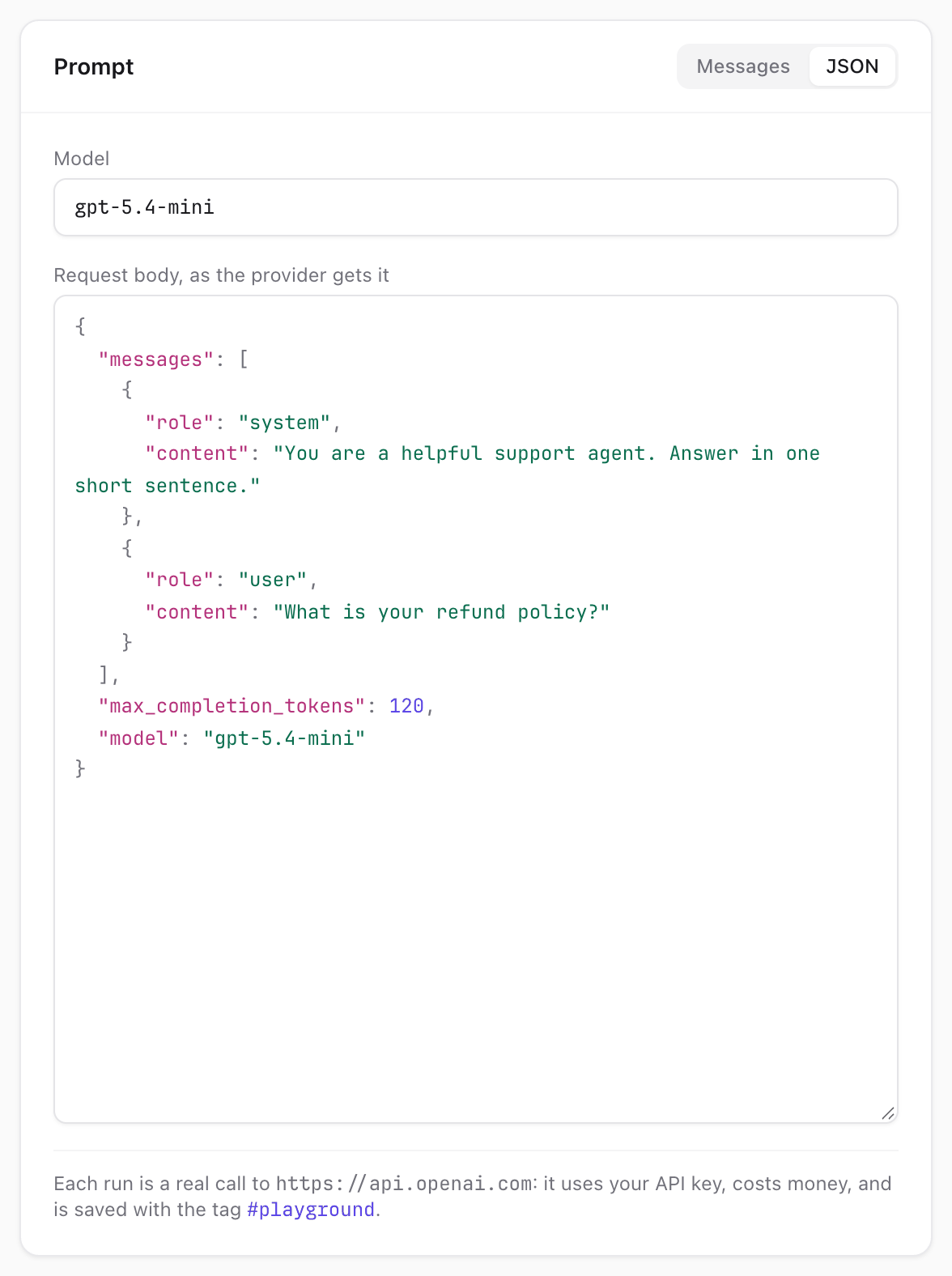
If the JSON isn't valid, the tab says what's wrong, and you can't run the call or switch tabs until it's fixed. The Model field above it wins over any model in the body.
Running It and Comparing
Press Run, or ⌘ or Ctrl + Enter. Once the answer is back, the screen moves to the run's own page, with the answer above the original call:
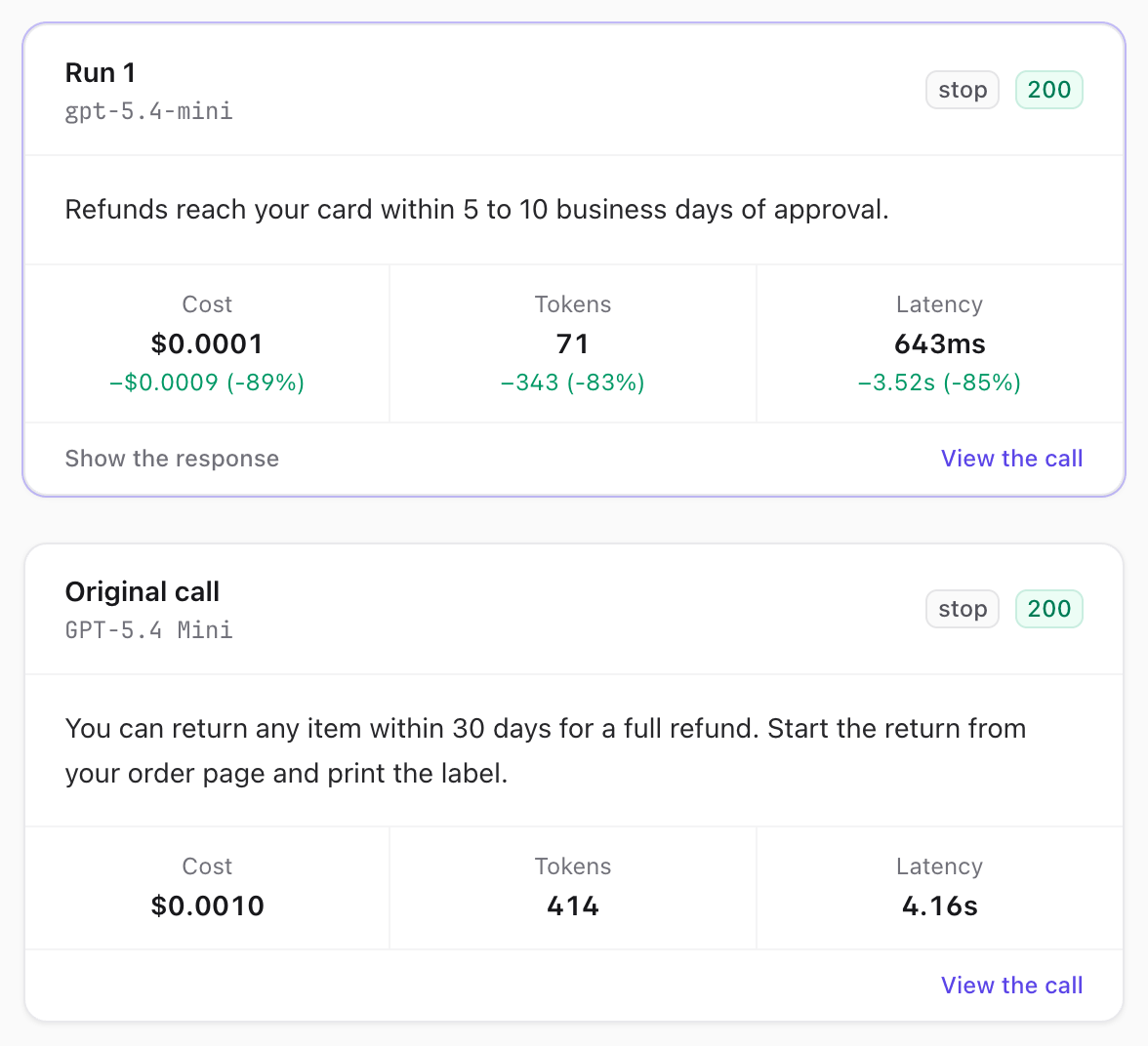
Each answer shows:
- The reply, or the provider's error.
- The status code and finish reason:
stopmeans the model finished, andlengthmeans it hit the max tokens. - The cost, tokens and latency. A run also shows how each number changed from the original.
Show the response opens the provider's full response, and View the call opens the run in the requests list. If the model asked for a tool instead of replying, the card says so, and the response shows what it asked for.
You can keep going: the run you just sent is at the top, the original call is below it, and the other runs are below that, newest first. Each is compared with the original. Reset puts back the prompt of the page you're on and keeps your runs.
Each Run Has Its Own Page
Every run has its own address, so refreshing the page, going back, or sharing the link shows the same run. The page opens with that run's prompt in the editor, its answer at the top, and the latest 20 runs that belong with it.
What you see is the saved copy, so it shows everyone's runs of that call and follows your storage settings. A reply that wasn't stored can't be shown, and redaction masks stay in the prompt until you replace them.
A run stays on the page you sent it from when there's nothing to open: recording is paused, its body isn't stored, or your app saves requests through a queue that hasn't got to it yet. Its answer is shown there and is gone when you leave.
When a Run Fails
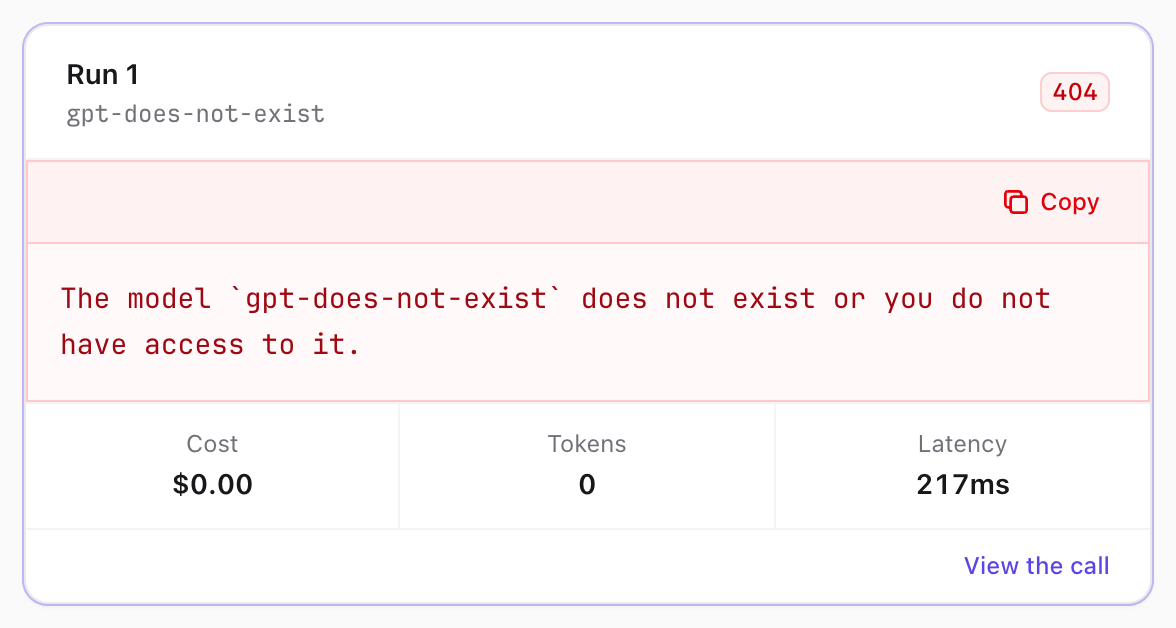
If the provider rejects a run, you see its error in place of the reply, so you can fix the problem and run again. Numbers aren't compared on a failed run.
What a Run Saves
A run is tracked like any other AI call, so it appears in the dashboard with its cost:
- It's a request of its own, shown as a run. A run is real spending, so it's stored and priced like any other call. In the requests list it has a Run badge that links to the request it started from, and that request's page lists its runs under Playground runs.
- It's tagged
playground. To see every run, click View all on the Playground screen or #playground in the editor's note, or filter the requests list by that tag. - A run of a stored call points back to it. Its page has a Started from link to the original call, stored in its metadata as
playground_source. - A run of a new request names the others it was sent with, through a session id stored in its metadata as
playground_session. - It belongs to whoever ran it, when
tracking.auto_track_useris on and they are signed in. - It isn't tagged with a prompt version, so experiments don't change the numbers on the Prompts screen.
Because runs are real spending, they count everywhere real spending counts: the Overview, the Costs screen, alerts, and the recorded spend of budgets. The Playground doesn't check a budget before a run, so a limit won't block one, but a run can still trigger a BudgetExceeded event once it's recorded. A run can also be picked for an annotation queue that samples all your traffic and has no filter.
The stored copy follows your storage settings like any other call, including redaction. A run's page shows the stored copy, masks included.
While recording is paused, a run still works and shows its numbers, but nothing is saved, so it has no View the call link.
When a Run Differs From the Original
A run sends what Spectra stored, which isn't always everything your app sent. When something is different, a note at the top of the screen tells you, so you don't draw the wrong conclusion from a comparison:

| The note says | What it means | What to do |
|---|---|---|
| Redaction masked parts of this call | Redaction replaced text such as an email address with [REDACTED:email], and the model will see that mask. | Replace the masks with made-up values if they matter to the answer. |
| This call carried inline files | Spectra doesn't store base64 images or files, so they were replaced with [stripped]. The provider may reject the run. | Remove those parts in the JSON tab, or put in a link to the file. |
| System prompts aren't stored | store_system_prompts is off, so the system prompt is missing. | Add it back as a message. |
| Tool definitions aren't stored | store_tools is off, so the model can't ask for those tools. | Add them back in the JSON tab. |
| This call was streamed | A run waits for the whole answer, so it has no time to first token. | Compare the total latency only. |
| This app also uses Azure OpenAI | See What Can Be Opened. | Check the address under the editor before you run. |
Two more things can change an answer, and no note covers them:
- Models vary. The same prompt can give different answers each time, especially at a higher temperature. One better answer doesn't prove a prompt is better, so run it a few times, or use an evaluation.
- Headers aren't stored. Spectra stores the body of a request, not its headers. A call that relied on a header, such as Anthropic's
anthropic-betaor an OpenAI organization, is sent without it. Anthropic calls use API version2023-06-01.
What Can Be Opened
The Playground runs text calls to these chat endpoints, when the request body was stored. A new request can go to any of these providers:
| Provider | Endpoints |
|---|---|
| OpenAI | /v1/chat/completions, /v1/responses |
| Anthropic | /v1/messages |
/{version}/models/{model}:generateContent and :streamGenerateContent | |
| Groq | /openai/v1/chat/completions, /openai/v1/responses |
| xAI | /v1/chat/completions, /v1/responses |
| Mistral | /v1/chat/completions |
| OpenRouter | /api/v1/chat/completions |
| Cohere | /v2/chat |
| Ollama | /api/chat, /api/generate (no API key needed) |
It can't run the calls below. They still open, with the reason at the top of the screen and Run turned off:
- Other kinds of calls, such as images, audio, video or embeddings.
- Calls whose body wasn't stored, because of payload sampling or your storage settings.
- Calls to custom providers, because Spectra doesn't know how they expect their key to be sent.
Azure OpenAI
Spectra records Azure OpenAI calls as openai and doesn't store the host they went to, so a run can't go back to Azure. It goes to the OpenAI address shown under the editor. If your data must stay in Azure, don't run these calls in the Playground. The screen warns you when your app has an Azure URL configured.
Using It in Production
The Playground works in production, but think about what you're turning on:
- Anyone with the
manageSpectragate can spend money with your API key, with no limit on the size or number of runs. Keep the gate to people you trust. - Stored prompts are sent to the provider again. They may hold customer data, and with the Playground on, a person can send it again by hand and edit it first.
- The web server waits for the answer. A run ties up one PHP worker until the provider answers or
SPECTRA_PLAYGROUND_TIMEOUTpasses.
A safe setup is to leave it off in production and use it where you develop, with a copy of the calls you care about. If you turn it on in production, a low-limit API key for that environment caps the damage.
What It Doesn't Do
- It doesn't save prompts. You keep your prompts in your code, and copy a better one there yourself. Runs are kept as calls, each with the prompt it sent, but edits you haven't run are gone when you leave the page.
- It doesn't run over a dataset. To grade a change across many examples, write an evaluation.
- It doesn't run your tools. If the model asks for a tool, you see what it asked for. To continue, add the tool's result as a message yourself.
- It doesn't stream. The answer appears once it's complete.